

Images
Images can be added to Text Blocks using the HTML editor to provide visual context or break up longer sections of text. Images can be placed between paragraphs or alongside text. Use high-quality images that are appropriately sized and optimized for the web. All images must include descriptive alternative (alt) text.
Writing Alt Text for Images
Alternative (alt) text provides a written description of an image for visitors who use screen readers or cannot see the image. Alt text should be clear, concise and describe the important information the image communicates.
Focus on the purpose of the image and its relationship to the surrounding content rather than describing every visual detail. Avoid starting with phrases like "Image of" or "Picture of," since screen readers already identify images.
If an image is purely decorative and does not provide meaningful information, use empty alt text (alt="") so screen readers can skip it. Avoid including text within images whenever possible. If an image contains important text, that information must also be accessible to visitors.
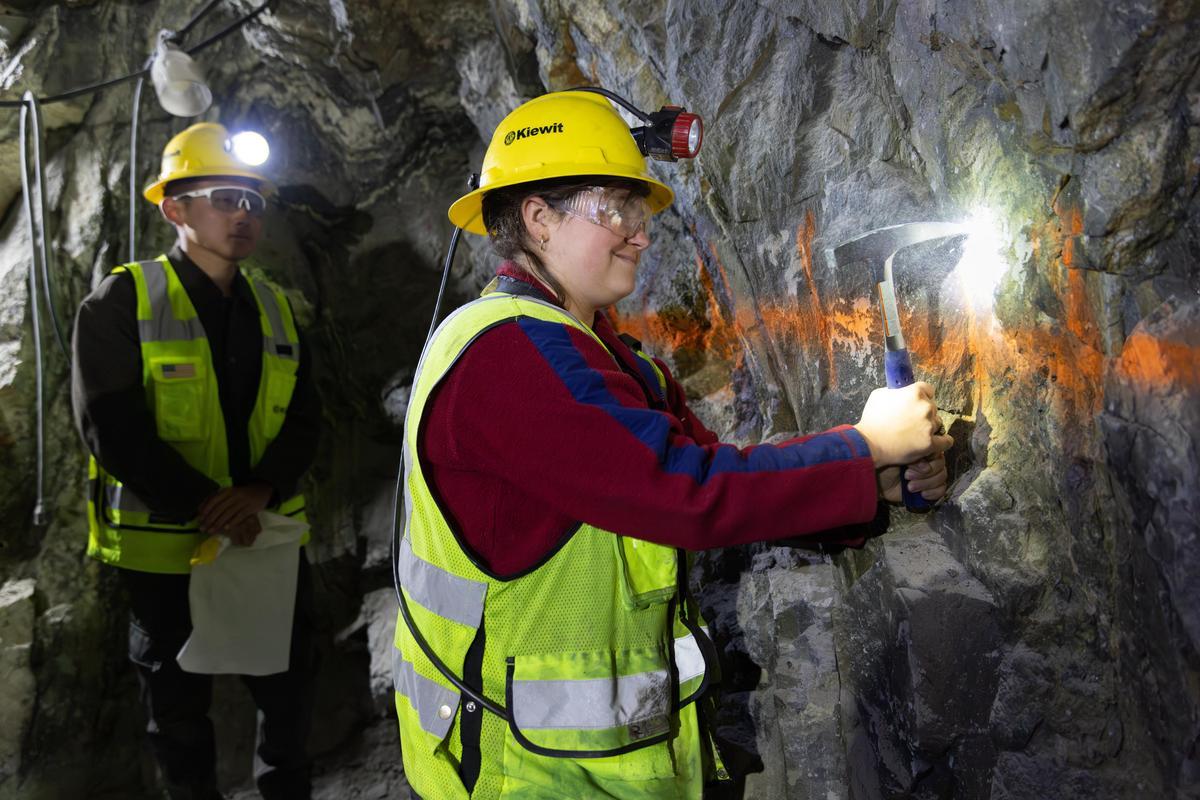
Good alt text: "A student uses a rock hammer to examine an exposed rock face during an underground geology field session."
Poor alt text: "Picture of a student with a hammer."
How to Add Images and Alt Text
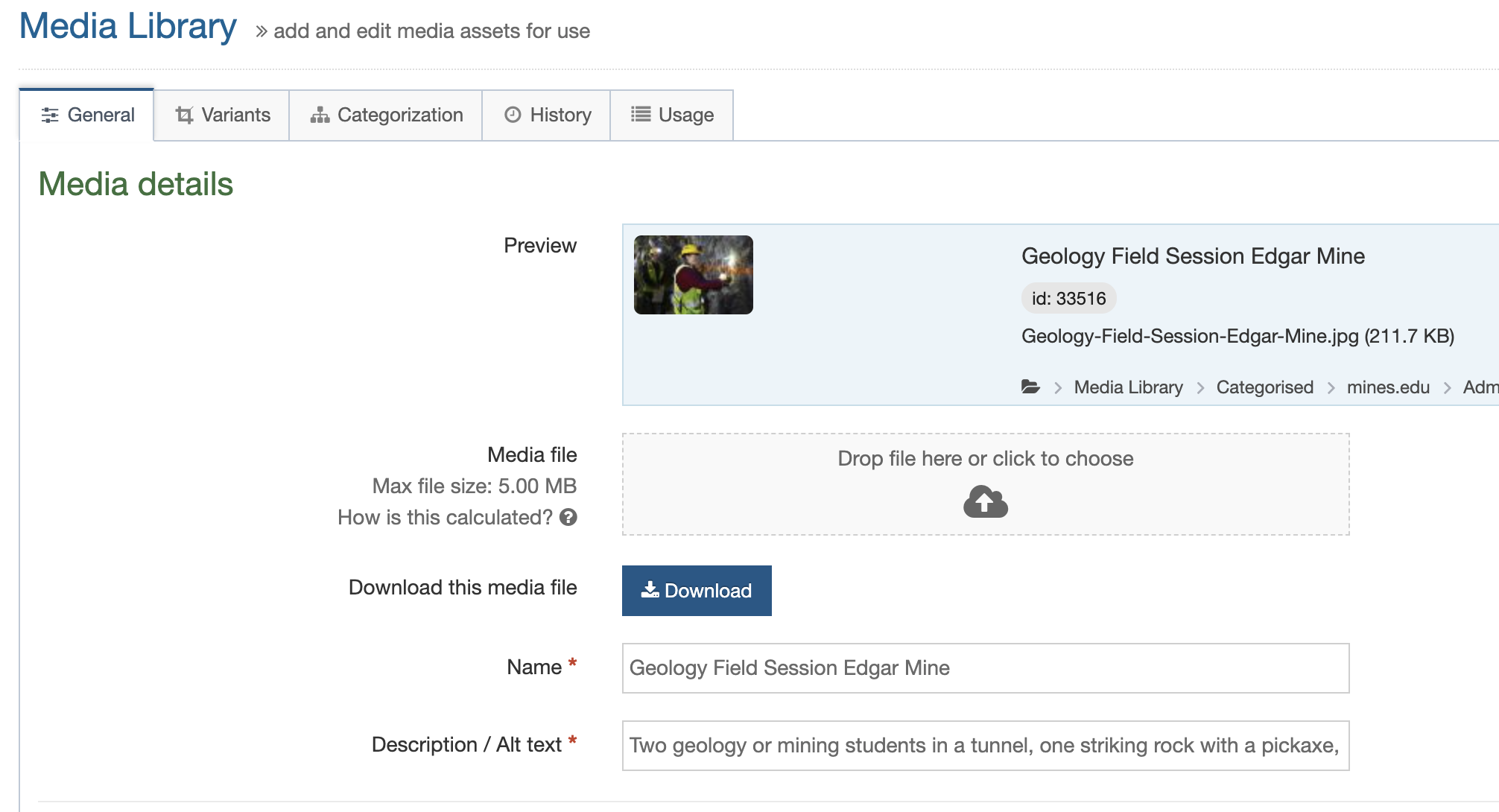
- Image max size is 5MB for upload.
- Make sure to review the image repository for images before selecting any from Mines Canto Digital Assett Management System.
How to Insert With Layout
Please include screenshots and examples for:
- Image Center
- Image Controllable Width
- Image Left
- Image Right
- Image Corner Brackets